常见工具搭建
移动端渗透框架
Mobsf
docker安装
Bash
docker pull opensecurity/mobile-security-framework-mobsf:latest
docker run -it --rm -p 8000:8000 opensecurity/mobile-security-framework-mobsf:latest
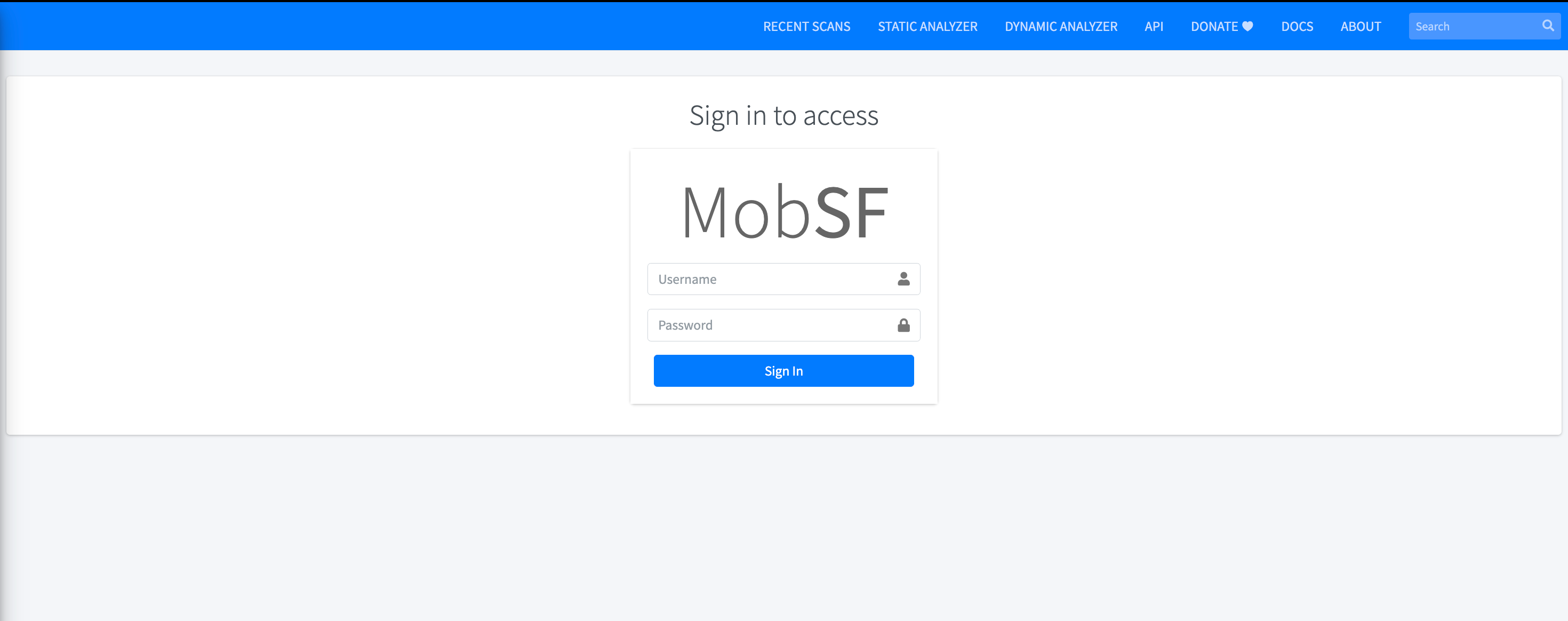
可以访问主机的8000端口
k8s安装
- Mobsf_pod.yaml
YAML
apiVersion: v1
kind: Pod
metadata:
  name: mobile-security-framework-mobsf
  labels:
    app: mobile-security-framework-mobsf
spec:
  containers:
  - name: mobsf
    image: opensecurity/mobile-security-framework-mobsf:latest
    ports:
    - containerPort: 8000
      hostPort: 8000
    stdin: true
    tty: true
- Mobsf_service.yaml
YAML
apiVersion: v1
kind: Service
metadata:
  name: mobsf-service
spec:
  selector:
    app: mobile-security-framework-mobsf
  ports:
    - protocol: TCP
      port: 8000
      targetPort: 8000
  type: NodePort
随后k8s启动即可
Bash
# create pod
kubectl apply -f mobsf_pod.yaml

# create service
kubectl apply -f mobsf_service.yaml
如果你不需要将mobsf暴露在集群之外,可以不创建服务
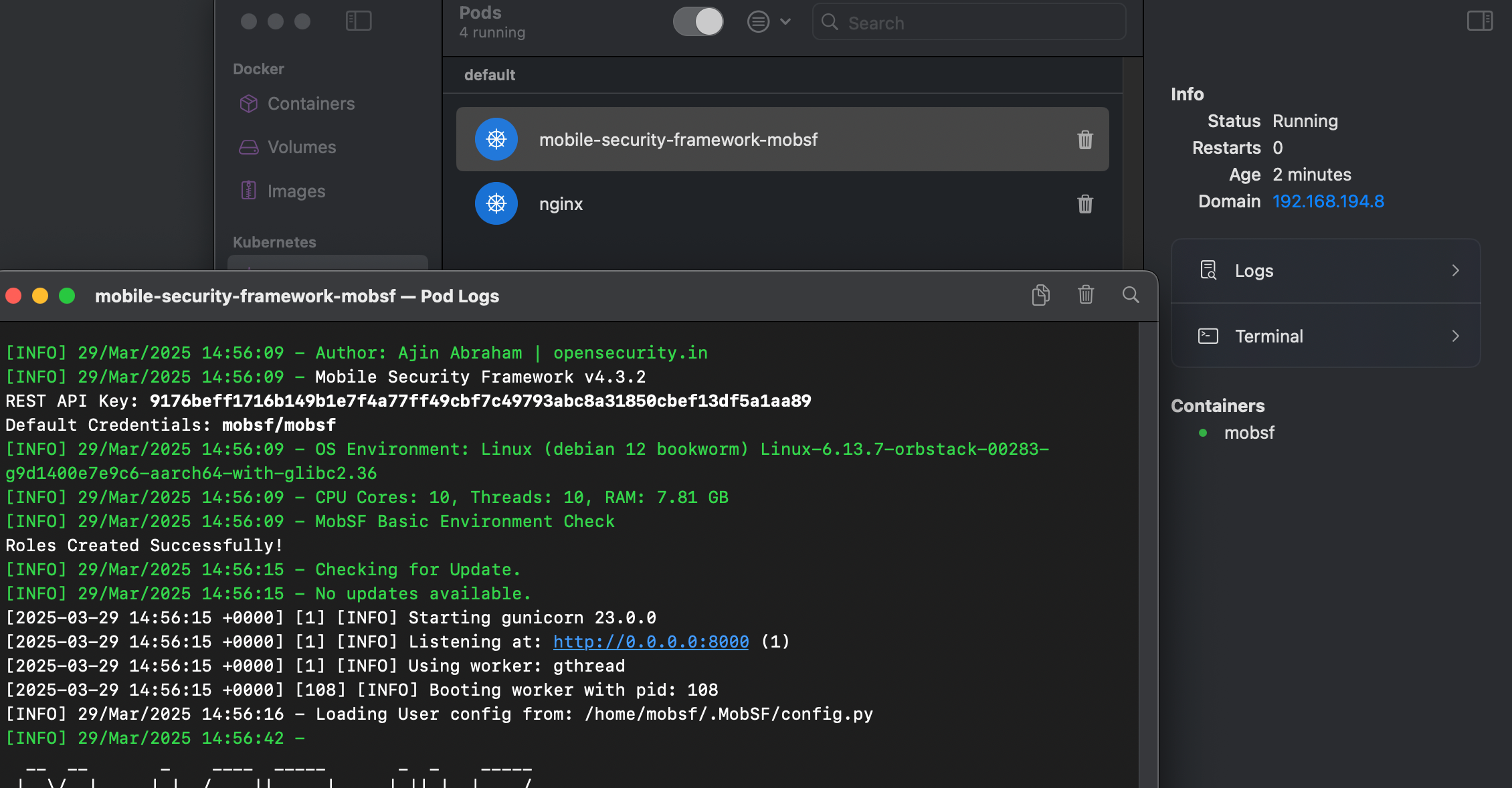
默认用户名密码
Drozer
drozer-agent
下载drozer-agent
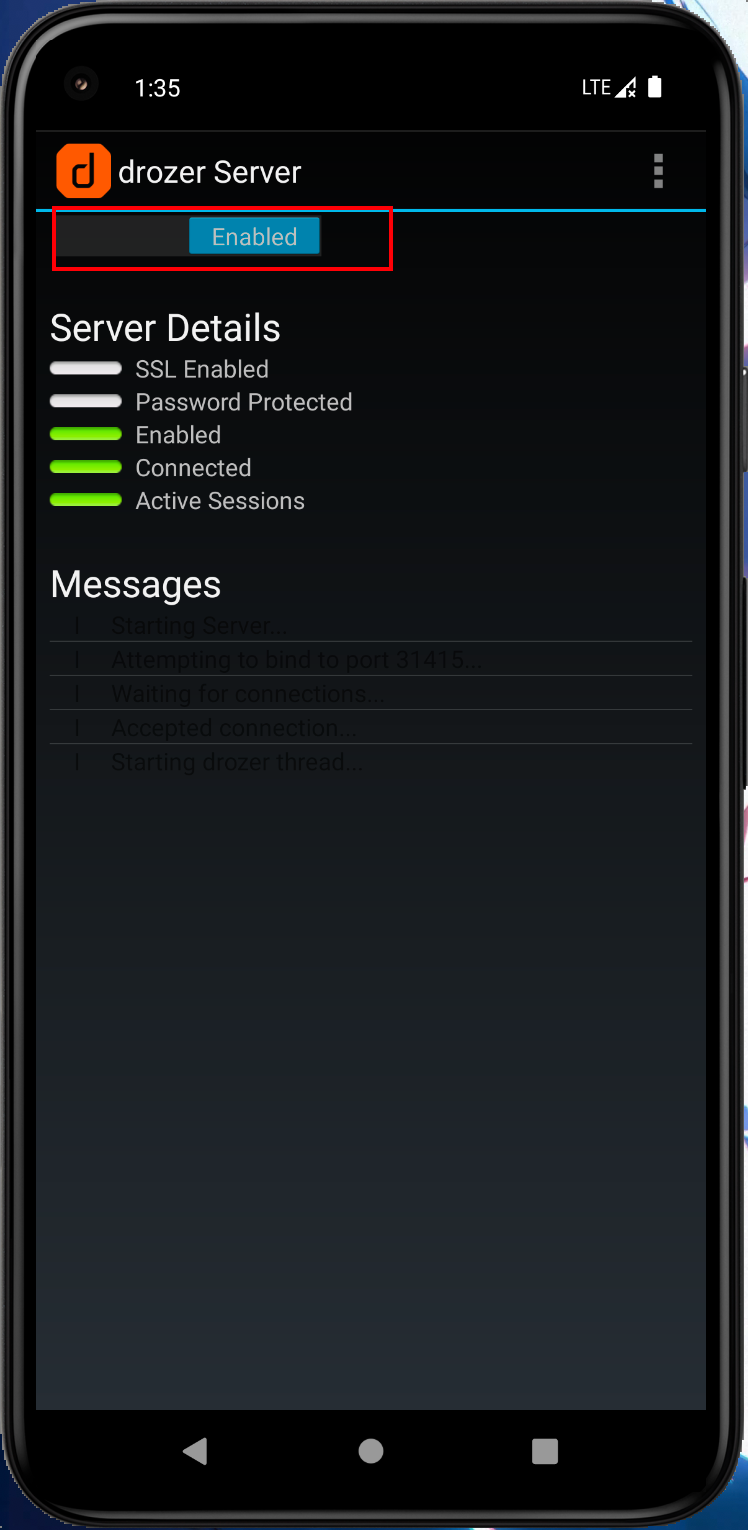
手机安装并打开
服务端配置
这里选择docker搭建
Run and Connect
Option 1: connect to the phone via network
If the target phone and PC are on the same network, this tends to be the easiest approach.
- Ensure that the drozer agent is running on the target device, and that the embedded server has been started.
- Then, to run drozer and connect to the phone, run:
docker run --net host -it withsecurelabs/drozer console connect --server <phone IP address>
If a system shell is required (for example, to inspect and retrieve any files downloaded by drozer), you can:
- Ensure that the drozer agent is running on the target device, and that the embedded server has been started.
- Obtain a shell into the container:
docker run --net host -it --entrypoint sh withsecurelabs/drozer - Then run the drozer command to connect to the phone:
drozer console connect --server <phone IP address>
Option 2: connect to the phone via USB
If network communications is restricted, adb port forwarding can be used to forward TCP traffic via USB.
- First, forward port 31415 to the phone via ADB:
adb forward tcp:31415 tcp:31415 - Ensure that the drozer agent is running on the target device, and that the embedded server has been started.
- Then, to run drozer and connect to the phone, run:
docker run --net host -it withsecurelabs/drozer console connect --server localhost
If a system shell is required (for example, to inspect and retrieve any files downloaded by drozer), you can:
- First, forward port 31415 to the phone via ADB:
adb forward tcp:31415 tcp:31415 - Ensure that the drozer agent is running on the target device, and that the embedded server has been started.
- Obtain a shell into the container:
docker run --net host -it --entrypoint sh withsecurelabs/drozer - Then run the drozer command to connect to the phone:
drozer console connect --server localhost
Note
可以通过网络和USB连接,笔者由于使用模拟器,网络不通,所以选择USB连接
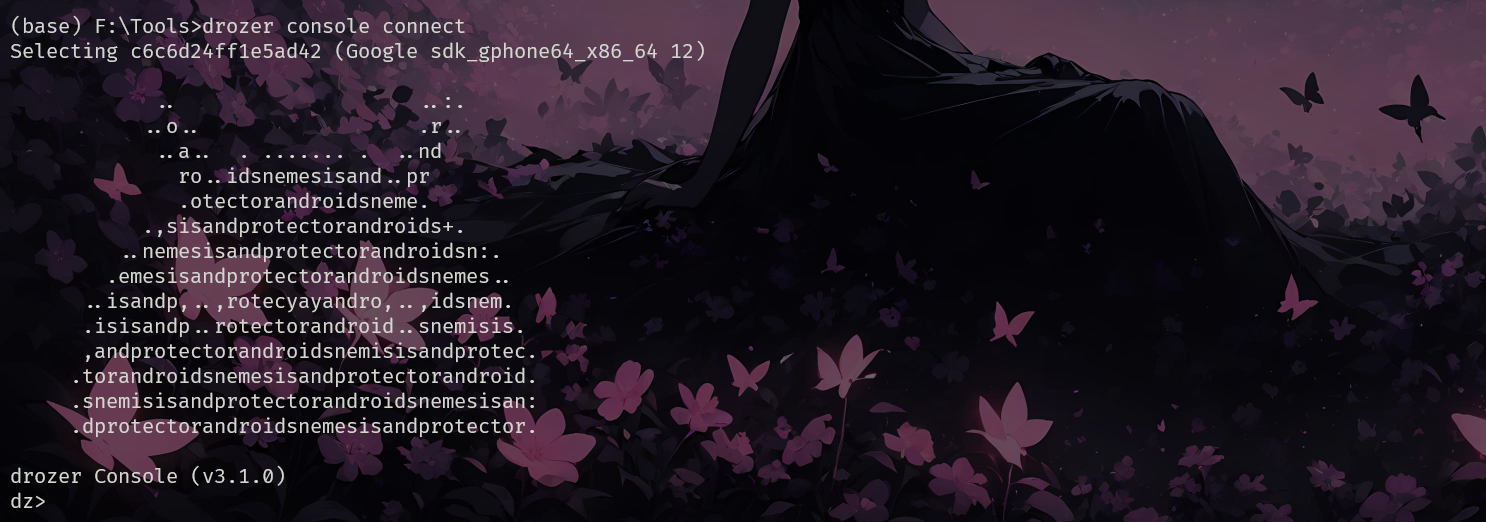
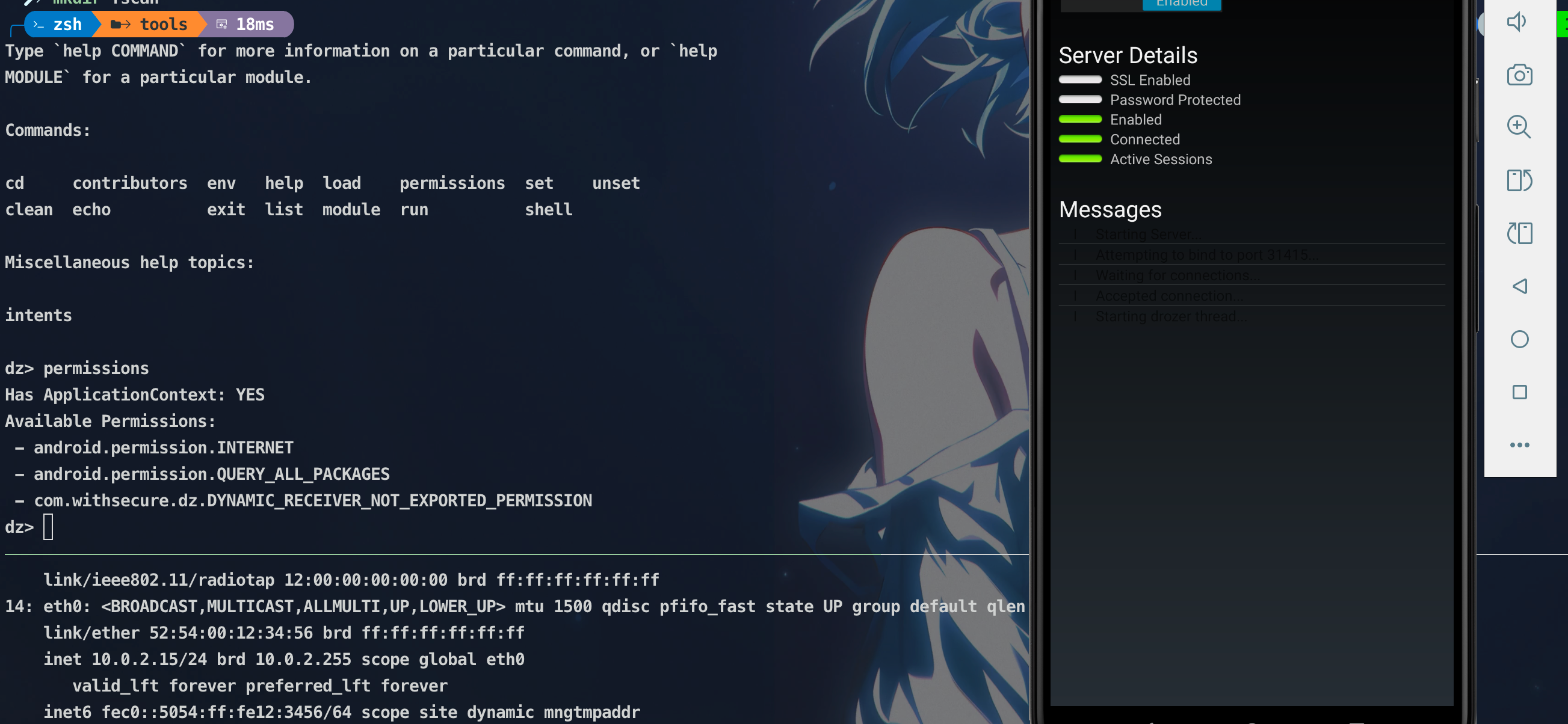
最终效果如下:
Note
在windows上使用docker,会出现配置都正确,但连接不上的问题,原因在于docker容器虽然能够ping通主机IP,但无法访问主机监听的端口,笔者尝试了关闭windows防火墙,但无果,笔者采用的是docker desktop,可能是该软件的原因
以下是直接在windows上安装drozer的步骤:
PowerShell
# 下载releases中的离线whl包

pip install drozer-3.1.0-py3-none-any.whl
# 随后启动即可
adb forward tcp:31415 tcp:31415
drozer console connect