Linux基础
Linux常用命令
Linux文件系统
Linux follows the Filesystem Hierarchy Standard (FHS), a unified structure that ensures consistency across distributions. Unlike Windows (which uses drive letters like C: or D:), Linux has a single root directory (/), with all other directories branching from it.
Here’s a breakdown of key directories in the Linux hierarchy:
| Directory | Description | Examples of Contents |
|---|---|---|
/ |
The root directory, the top of the hierarchy. All other directories stem from here. | /home, /etc, /bin, etc. |
/bin |
Essential user binaries (executable programs) needed for system repair/recovery. | ls, cp, mv, sh (shell) |
/boot |
Files required to boot the system: kernel, initramfs, bootloader configs. | vmlinuz (kernel), initrd.img (initial RAM disk), grub(bootloader directory) |
/dev |
Device files: Linux represents hardware/software devices as files here. | /dev/sda (first SATA drive), /dev/null (null device), /dev/tty1 (terminal) |
/etc |
System-wide configuration files. | passwd (user accounts), fstab (mount points), apache2/ (web server configs) |
/home |
User home directories, where personal files are stored. | /home/alice, /home/bob |
/lib |
Shared libraries (code used by programs) and kernel modules. | libc.so (C standard library), kernel modules in /lib/modules/ |
/media |
Mount point for removable media (USB drives, CDs, external HDDs). | /media/usb, /media/cdrom |
/mnt |
Temporary mount point for manually mounting file systems. | /mnt/backup, /mnt/shared |
/opt |
Optional software (third-party apps not managed by the system package manager). | /opt/google/chrome, /opt/docker/ |
/proc |
Virtual file system (not on disk) exposing system/kernel information. | /proc/cpuinfo (CPU details), /proc/meminfo (memory usage), /proc/1/ (PID 1 process) |
/root |
Home directory for the root (administrative) user. |
root’s personal files (not to be confused with /). |
/sbin |
System binaries (admin-only tools for system maintenance). | fdisk (disk partitioning), mount, reboot, fsck (file system check) |
/tmp |
Temporary files (cleared on reboot). | Logs, caches, or files used by running programs. |
/usr |
Secondary hierarchy for user utilities and applications. | /usr/bin (non-essential user binaries), /usr/share (shared data like icons), /usr/local (locally installed software) |
/var |
Variable data: files that grow/change over time (logs, databases, spool files). | /var/log (system logs), /var/www (web server files), /var/spool/mail (emails) |
Key Notes:
- Virtual File Systems: Directories like
/procand/sysare not stored on disk—they are generated dynamically by the kernel to expose system state. - No Drive Letters: All storage devices (internal drives, USBs) are mounted under the root hierarchy (e.g., a USB drive might mount at
/media/usb).
Inodes: The “Metadata Managers”
Every file/directory in Linux is associated with an inode (index node), a data structure that stores metadata about the file. Think of inodes as “digital ID cards” for files.
Inode metadata includes:
- File size, owner, group, permissions.
- Timestamps:
atime(last access),mtime(last modification),ctime(last metadata change). - Pointers to data blocks (where the file’s actual content is stored on disk).
Key Fact: Filenames are not stored in inodes. Instead, filenames are labels that map to inodes (more on this below).
To view a file’s inode number, use ls -i:
Directories: Special Files for Organizing Inodes
A directory is a special file that contains a list of entries, where each entry maps a filename to an inode number. For example, the /home/alice directory might contain entries like:
To list a directory’s contents with inode numbers, use ls -li:
Links: Hard vs. Soft (Symbolic)
Links are pointers to files. Linux supports two types:
Hard Links
A hard link is a direct reference to an inode. Creating a hard link to a file gives it a new filename, but both names point to the same inode (and thus the same data).
Key Properties:
- Hard links share the same inode number as the original file.
- Deleting the original file does not delete the hard link (the data remains until all links are deleted).
- Hard links cannot cross file system boundaries (they only work within the same partition).
Example: Create a hard link to file.txt:
echo "Hello" > file.txt  # Create original file
ln file.txt file_link    # Create hard link
ls -li file.txt file_link  # Both show the same inode number
rm file.txt               # Delete original
cat file_link             # Still works! Output: "Hello"
Soft (Symbolic) Links
A soft link (symlink) is a shortcut to another file/directory. Unlike hard links, symlinks store the path to the target file, not its inode.
Key Properties:
- Symlinks have their own inode number.
- If the target file is deleted, the symlink becomes “broken” (points to nothing).
- Symlinks can cross file system boundaries and link to directories.
Example: Create a symlink to file.txt:
echo "Hello" > file.txt  # Create original file
ln -s file.txt file_symlink  # Create symlink (-s for soft)
ls -li file.txt file_symlink  # Different inode numbers
rm file.txt               # Delete original
cat file_symlink          # Error: "No such file or directory"
/proc
The /proc file system, also known as the procfs, is a virtual file system that is dynamically generated by the Linux kernel. It exists only in memory and does not consume any disk space. Each file and directory within /proccorresponds to a specific kernel data structure or a running process.
Structure and Key Components
Process Directories (/proc/<pid>): Each running process has a directory namedafter its process ID (PID). These directories contain files representing:
- Command-line arguments (
cmdline) - Environment variables (
environ) - Memory maps (
maps) - Open file descriptors (
fd/) - Executable path (
exe) - Current working directory (
cwd) - Process status (
status) and memory usage (statm)
例如我们使用ps查看进程:
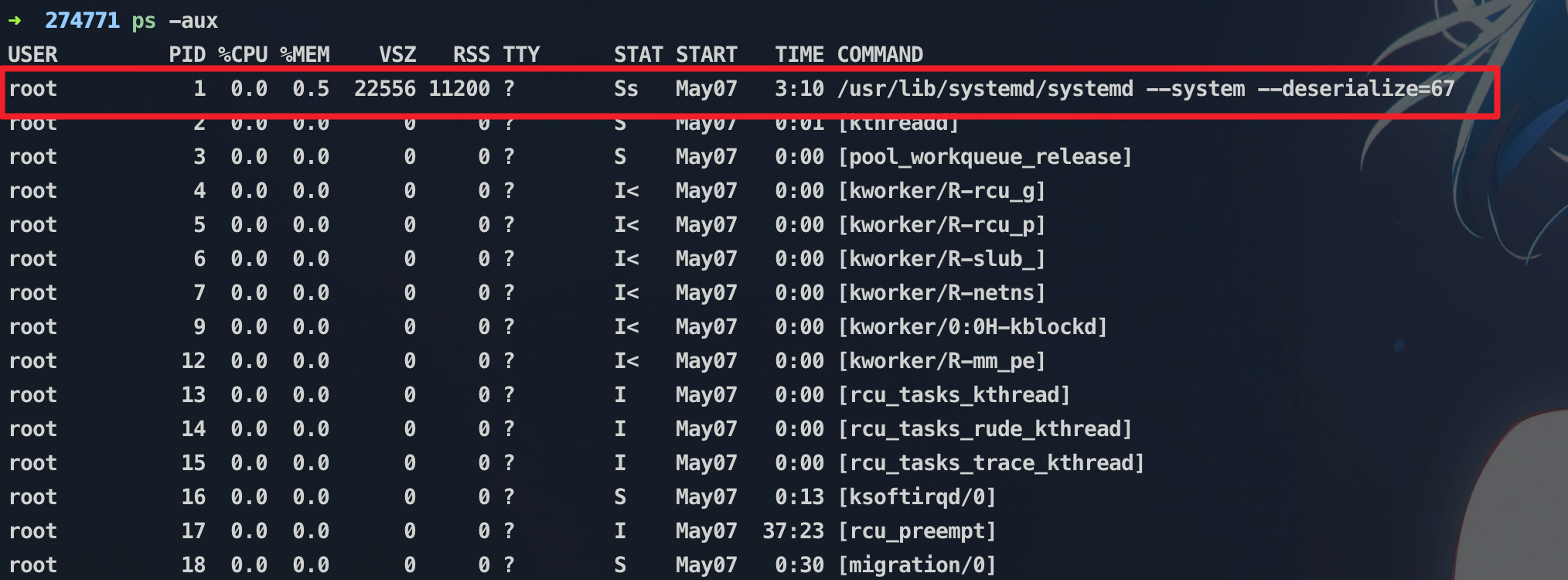
进程号为1,对应的proc目录为/proc/1
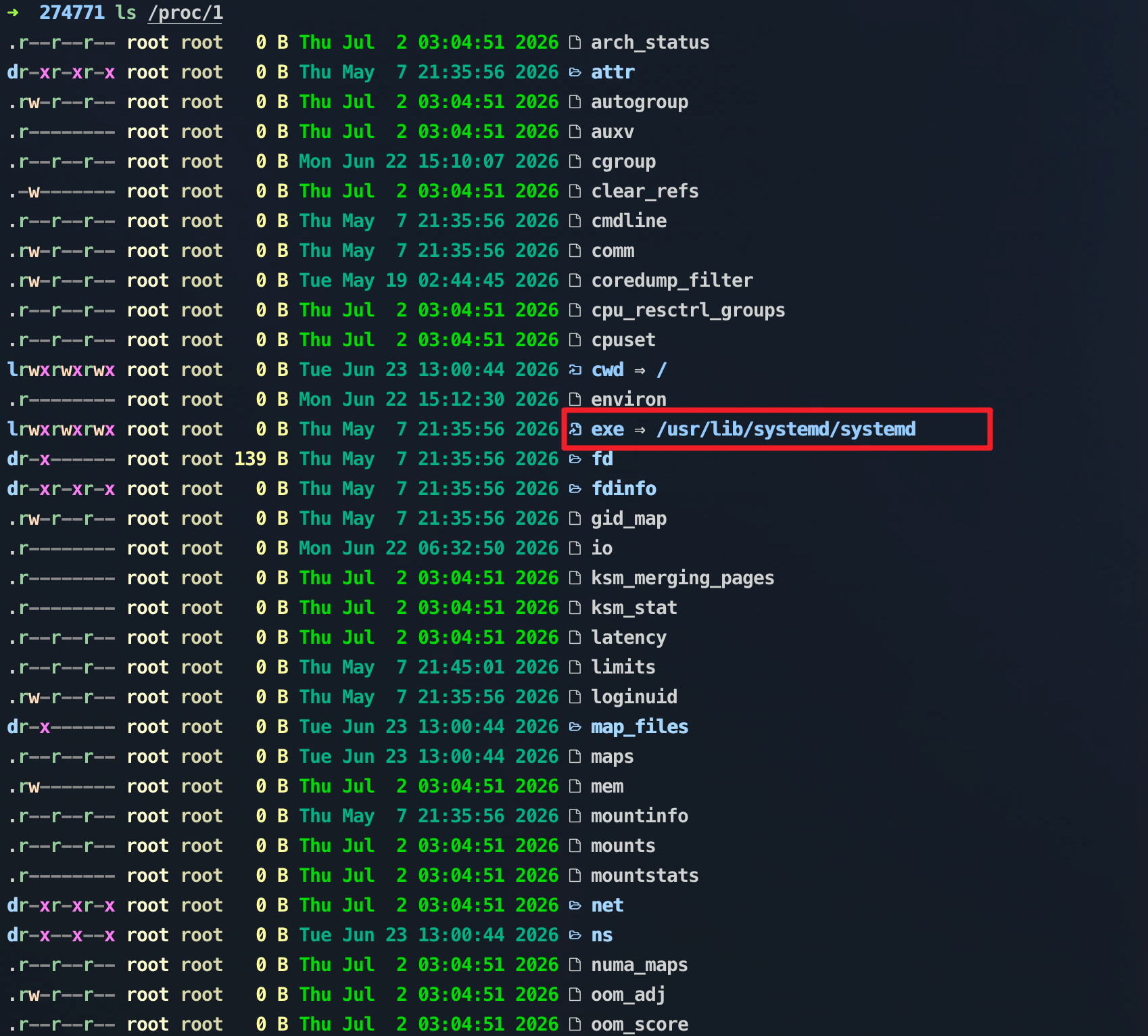
其中的exe就对应该进程的执行程序,cmdline就是该进程的执行命令
System Information Files:
/proc/cpuinfo: CPU details including model, cores, and features/proc/meminfo: Memory usage statistics/proc/stat: System-wide statistics such as CPU usage, interrupts, and contextswitches/proc/uptime: System uptime/proc/loadavg: Load averages/proc/crypto: Kernel cryptography information/proc/devicesand/proc/ioports: Device and I/O port usage/proc/version: Linux kernel version
Practical Uses
- Monitoring: View CPU, memory, and process statistics without external tools.
- Debugging: Inspect process memory maps, open files, and environment variables.
- System Tuning: Adjust kernel parameters dynamically via
/proc/sys. - Scripting and Automation: Programs can read
/procfiles to gather system metricsfor logging or alerting.
参考:https://www.kernel.org/doc/html/latest/filesystems/proc.html
/etc
The /etc directory is a top-level (root) directory in the Linux filesystem hierarchy. Its primary role is to store system-wide configuration files and scripts that control how the operating system, services, and applications behave. Unlike user-specific configuration files (which live in ~/.config or home directories), the files in /etc apply to all users and the system as a whole.
Key Characteristics
- Scope: System-wide (not user-specific).
- Permissions: Most files are read-only for regular users (to prevent accidental tampering) and writable only by the
rootuser or viasudo. - Static vs. Dynamic: While some files are static (manually edited), others may be managed by system tools (e.g.,
passwd,hostnamectl).
Key Subdirectories in /etc
/etc isn’t just a flat directory—it contains dozens of subdirectories, each dedicated to specific system components. Let’s explore the most important ones:
-
/etc/init.d(or/etc/systemd/system) -
Purpose: Legacy init scripts (System V) or systemd service unit files.
-
Details: On older systems using System V init,
/etc/init.dstored startup/shutdown scripts for services (e.g.,apache2,ssh). Modern systems (like Ubuntu 16.04+, RHEL 7+) use systemd, where service files live in/etc/systemd/system(user-defined) or/usr/lib/systemd/system(system-defined). -
/etc/X11 -
Purpose: Configuration for the X Window System (graphical interface).
-
Contents: Includes files for display managers (e.g.,
gdm3,lightdm), window managers (e.g.,i3,gnome), and Xorg server settings (xorg.conf). -
/etc/network(or/etc/sysconfig/network-scripts) -
Purpose: Network configuration.
-
Details: On Debian/Ubuntu,
/etc/network/interfacesdefines network interfaces (e.g.,eth0,wlan0). On RHEL/CentOS, this is handled by/etc/sysconfig/network-scripts/ifcfg-<interface>. -
/etc/aptor/etc/yum.repos.d -
Purpose: Package manager configuration.
-
Details:
/etc/apt/sources.list(Debian/Ubuntu) lists repositories foraptpackages. On RHEL/CentOS,/etc/yum.repos.d/contains.repofiles foryum/dnf. -
/etc/pam.d -
Purpose: Pluggable Authentication Modules (PAM) configuration.
-
Details: PAM controls how users authenticate (e.g., password, SSH keys, biometrics). Files here (e.g.,
login,sudo,sshd) define rules for specific services. -
/etc/skel -
Purpose: Skeleton directory for new user accounts.
-
Details: When a new user is created (via
useradd), files in/etc/skel(e.g.,.bashrc,.profile,.vimrc) are copied to their home directory. -
/etc/cron.dand/etc/crontab -
Purpose: Scheduled task (cron job) configuration.
-
Details:
/etc/crontabis the system-wide cron table, while/etc/cron.d/holds additional cron job files for specific services. -
/etc/logrotate.d -
Purpose: Log rotation rules.
- Details: Defines how log files (e.g.,
/var/log/syslog,/var/log/auth.log) are rotated, compressed, and purged (e.g., "keep 7 days of logs").
Common Configuration Files in /etc
Beyond subdirectories, /etc contains hundreds of critical files. Below are the most essential ones, with explanations and examples:
-
/etc/passwd -
Purpose: Stores user account information (excluding passwords).
- Format: Each line represents a user:
username:password_placeholder:UID:GID:GECOS:home_directory:shell -
Example:
alice:x:1000:1000:Alice Smith:/home/alice:/bin/bash(Here,xmeans the password is stored in/etc/shadow.) -
/etc/shadow -
Purpose: Securely stores hashed user passwords (readable only by
root). - Format:
username:hashed_password:last_change:min_age:max_age:warning:inactive:expire:reserved -
Example:
alice:$6$abc123...$def456...:19500:0:99999:7:::(The$6$indicates SHA-512 hashing.) -
/etc/group -
Purpose: Defines user groups.
- Format:
groupname:password_placeholder:GID:members -
Example:
developers:x:1001:alice,bob,charlie -
/etc/fstab(Filesystem Table) -
Purpose: Specifies which filesystems to mount at boot.
- Format:
device:mount_point:filesystem_type:options:dump:fsck_order -
Example:
/dev/sda1 / ext4 defaults 0 1(Mounts/dev/sda1(root partition) at/withext4filesystem.) -
/etc/hostname -
Purpose: Stores the system’s hostname.
-
Example:
my-linux-server(To change the hostname, edit this file or usehostnamectl set-hostname <new-name>.) -
/etc/hosts -
Purpose: Local DNS lookup table (maps IPs to hostnames, bypassing DNS servers).
-
Example:
127.0.0.1 localhost192.168.1.100 myprinter.local -
/etc/resolv.conf -
Purpose: Configures DNS resolvers (IPs of DNS servers).
-
Example:
nameserver 8.8.8.8# Google DNSnameserver 8.8.4.4Note: On systems with NetworkManager or systemd-resolved, this file may be auto-generated. -
/etc/sudoers -
Purpose: Controls
sudoaccess (which users can run commands asroot). - Warning: Edit only with
visudo(it checks for syntax errors to prevent lockouts!). -
Example:
alice ALL=(ALL:ALL) ALL# Alice can run any command as any user. -
/etc/ssh/sshd_config -
Purpose: Configuration for the SSH server (
sshd). - Common Settings:
Port 22(default SSH port),PermitRootLogin no(disable root SSH login),PasswordAuthentication yes.
/var/log
This is where system and application log files are stored. For example, syslog contains system-wide messages, and apache2 or nginx directories store web server logs.
Purpose and Contents
/var/log stores log files from various programs, especially:
- System logs: e.g.,
/var/log/messages(Red Hat/CentOS) or/var/log/syslog(Debian/Ubuntu) — contains kernel messages, service activity, and hardware events - Application logs: e.g.,
/var/log/apache2/,/var/log/mysql/— service-specific logs - User activity logs: e.g.,
/var/log/auth.logfor authentication events - Security logs: e.g.,
/var/log/secureor/var/log/auth.logfor login/logout records - Cron logs: e.g.,
/var/log/cronfor scheduled job activity
These files are text-based and follow a standard format:
Example:
Dec 25 14:30:42 server01 sshd[1234]: Accepted password for user from 192.168.1.100 port 52890 ssh2
Logging Mechanisms
Modern Linux systems often use two logging systems:
- rsyslog (or syslogd) — traditional file-based logging, writing to
/var/log/ - journald (systemd) — structured binary logging with rich metadata, accessible via
journalctl
In many setups, journald captures all logs and forwards them to rsyslog for persistent storage in /var/log/
Linux权限认证
PAM
Linux进程管理工具
可以用以上操作
Linux服务管理
systemd is the init system used by most modern Linux distributions, including Ubuntu, Debian, Fedora, and RHEL. It manages system processes, handles service dependencies, and starts services automatically at boot.
A systemd service file — also called a unit file — tells systemd how to start, stop, and manage a process. This guide explains how to create a systemd service file, install it on the system, and manage it with systemctl .
Quick Reference
| Task | Command |
|---|---|
| Create a service file | sudo nano /etc/systemd/system/myservice.service |
| Reload systemd after changes | sudo systemctl daemon-reload |
| Enable service at boot | sudo systemctl enable myservice |
| Start the service | sudo systemctl start myservice |
| Enable and start at once | sudo systemctl enable --now myservice |
| Check service status | sudo systemctl status myservice |
| Stop the service | sudo systemctl stop myservice |
| Disable at boot | sudo systemctl disable myservice |
| View service logs | sudo journalctl -u myservice |
| View live logs | sudo journalctl -fu myservice |
Understanding systemd Unit Files
Service files are plain text files with an .service extension. They are stored in one of two locations:
/etc/systemd/system/— system-wide services, managed by root. Files here take priority over package-installed units./usr/lib/systemd/system/or/lib/systemd/system/— units installed by packages, depending on the distribution. Do not edit these directly; copy them to/etc/systemd/system/to override.
A service file is divided into three sections:
[Unit]— describes the service and declares dependencies.[Service]— defines how to start, stop, and run the process.[Install]— controls how and when the service is enabled.
Troubleshooting
- Service fails to start — “Failed to start myapp.service”
Check the logs with journalctl : sudo journalctl -u myapp --since "5 minutes ago". The output shows the exact error message from the process.
- Changes to the service file have no effect
You must run sudo systemctl daemon-reload after every edit to the unit file. systemd reads the file at reload time, not at start time.
- “ExecStart= must be an absolute path”
The ExecStart= value must start with /. Use the full path to the binary — for example /usr/bin/python3 not python3. Use which python3 to find the absolute path.
- Service starts but immediately exits
The process may be crashing on startup. Check sudo journalctl -u myapp -n 50 for error output. If Type=simple, make sure ExecStart= runs the process in the foreground — not a script that launches a background process and exits.
- Service does not start at boot despite being enabled
Confirm the [Install] section has a valid WantedBy= target and that systemctl enable was run after daemon-reload. Check with systemctl is-enabled myapp.
参考:
https://linuxize.com/post/how-to-create-a-systemd-service/#running-a-service-as-a-non-root-user
https://docs.redhat.com/en/documentation/red_hat_enterprise_linux/7/html/system_administrators_guide/chap-managing_services_with_systemd
Linux网络工具
ss sample command
ss allows filtering by state, address, port, or device. Common TCP states include established, syn-sent, syn-recv, fin-wait-1, time-wait, closed, and listening.Filters can be combined using boolean operators (and, or, not) to refine output. For example:
ss -tan state time-wait: Show all TCP sockets in the TIME-WAIT statess -uln: Show all UDP sockets with numeric addresses and portsss -tulpn: Show all TCP and UDP listening sockets with process names and numeric addressesss -ap: Show all processes using internet sockets along with socket detailsss -x: Display all Unix sockets, including inode numbers and process IDs
netstat sample command
netstat (network statistics) is a command-line utility that provides detailed information about the Linux networking subsystem, including active TCP and UDP connections, listening sockets, routing tables, and interface statistics.
- List all active connections:
netstat -a - Show only listening TCP ports:
netstat -t -l - Show UDP connections:
netstat -u - Display routing table:
netstat -r - View interface statistics:
netstat -i - Find which process is using a port:
sudo netstat -tulpn
tcpdump sample command
- Capture all packets:
- Capture packets on a specific interface:
- Capture packets from a specific host:
- Capture TCP packets on a specific port:
- Write captured packets to a file:
Linux日志
A Quick Reference Guide to Linux Log File Locations
| Service/Application | Primary Log Location | Secondary Logs | Description |
|---|---|---|---|
| System Messages | /var/log/syslog(Debian/Ubuntu) /var/log/messages(RHEL/CentOS) |
/var/log/kern.log |
General system events, kernel messages |
| Authentication | /var/log/auth.log(Debian/Ubuntu) /var/log/secure(RHEL/CentOS) |
/var/log/btmp, /var/log/wtmp |
Login attempts, sudo usage, security events |
| Apache Web Server | /var/log/apache2/access.log /var/log/apache2/error.log |
/var/log/apache2/other_vhosts_access.log |
HTTP requests, server errors |
| Nginx Web Server | /var/log/nginx/access.log /var/log/nginx/error.log |
Site-specific logs in /var/log/nginx/ |
HTTP requests, server errors |
| MySQL Database | /var/log/mysql/error.log |
/var/log/mysql/slow.log /var/log/mysql/mysql.log |
Database errors, slow queries |
| PostgreSQL | /var/log/postgresql/ |
Cluster-specific subdirectories | Database operations, errors |
| SSH Daemon | Logged to /var/log/auth.logor /var/log/secure |
/var/log/sshd.log (some systems) |
SSH connections, authentication |
| Cron Jobs | /var/log/cron |
User-specific cron logs | Scheduled task execution |
| Mail Server | /var/log/mail.log(Debian/Ubuntu) /var/log/maillog(RHEL/CentOS) |
/var/log/mail.err, /var/log/mail.warn |
Email server operations |
| FTP Server | /var/log/vsftpd.log or /var/log/proftpd/ |
Service-specific locations | FTP connections, transfers |
| Firewall (UFW) | /var/log/ufw.log |
Included in /var/log/syslog |
Firewall rule matches, blocked connections |
| DNS (BIND) | /var/log/named/ or /var/log/bind/ |
/var/log/syslog for basic messages |
DNS queries, zone transfers |
| DHCP Server | /var/log/dhcp.log or /var/log/syslog |
Service-specific configuration |